Day 4 Task: Basic Linux Shell Scripting for DevOps Engineers.

I'm a DevOps Engineer with over 3+ years of experience.
Introduction 🌟
The #90DaysOfDevOps challenge is already on Day 4! We'll get into the fundamentals of Linux shell scripting today and discuss how DevOps engineers might benefit from it. Shell scripting is a potent ability that allows you to manage system settings, automate processes, and accelerate DevOps workflows.
What is a Kernel?
A kernel is a crucial component of an operating system (OS). It serves as the bridge between software applications and the hardware of a computer system. Essentially, it's like the brain of your computer, overseeing and managing all its activities. 🧠💻
The kernel is a computer program that is the core of a computer’s operating system, with complete control over everything in the system.
What is Shell Scripting?
Shell scripting is a fascinating way to automate tasks and unleash the power of the command line 🚀. 🐚 In simple terms, a shell script is a file containing a sequence of commands that can be executed in a Unix-like operating system's shell, such as Bash, Zsh, or PowerShell. It's like having a personal assistant for your computer, carrying out repetitive tasks on your behalf. Let's dive deeper into this exciting world! 🌊
💡 Getting Started
To create a shell script, you need a text editor and a basic understanding of the shell language. The script file typically starts with a "shebang" (e.g., #!/bin/bash), which specifies the interpreter to use. You can then write commands, comments, and variables to control the flow and behaviour of the script.
Shell scripting is incredibly versatile and finds its use in various scenarios, such as:
🔹 System Administration: Automate system maintenance tasks, backups, user management, and software installations.
🔹 Data Processing: Process large datasets, manipulate files, and extract information using command-line tools.
🔹 Task Automation: Streamline repetitive tasks, like renaming files, generating reports, or deploying applications.
🔹 Web Development: Use scripts to build, test, and deploy web applications or run development servers.
💻🔥 "What is #!/bin/bash? Can we write #!/bin/sh as well?" 🔥💻
When you see the line
#!/bin/bashat the beginning of a script file, it's called a shebang or a hashbang. It's a special instruction for the system to determine which interpreter to use to execute the script. In this case,#!/bin/bashindicates that the script should be interpreted using the Bash shell.Bash (short for "Bourne Again SHell") is a popular command-line interpreter and scripting language on Unix-like operating systems, including Linux. It's a powerful and versatile shell that offers extensive features and capabilities, making it a favourite among scriptwriters.
Now, what about
#!/bin/sh? 🤔 Well,shis another common shell found on Unix-like systems, known as the Bourne shell. It's a simpler shell compared to Bash, with fewer features and more basic syntax.So, while you can write
#!/bin/shif your script only requires basic shell functionality, using#!/bin/bashprovides a broader range of features and ensures compatibility with both sh and Bash.
Write a Shell Script which prints some message.
We will create a task.sh file, and then use echo command to print text message.
To create a file we'll use this command:-
vim task.sh
To run script file, following command will be used:-
./task.sh


When you try to run the file "Permission Denied" error will come. To overcome we need to give user permission to execute the file. To understand about chmod or changing permissions please refer to day 3 blog or previous day one.
chmod 777 task.sh
Shell Script to take user input, input from arguments and print the variables.
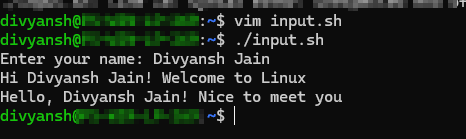
Shell scripting provides the ability to engage with users and dynamically handle input. Let's explore an example script that accepts user input, saves it in a variable, and displays the variable's value.
#!/bin/bash

# Prompt the user for their name
read -p "Enter your name: " name

# Print a greeting message with the user's name
echo "Hi $name! Welcome to Linux"
echo "Hello, $name! Nice to meet you"
read in shell script takes user input and echo will print the data.
Using If-Else Statements in Shell Scripting
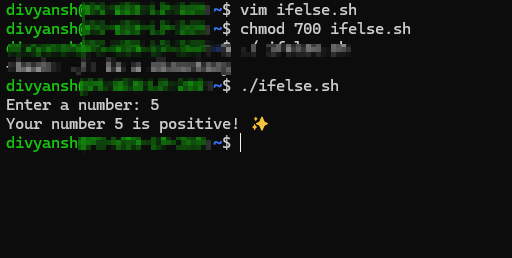
Let's use an if-else statement to check if a number is positive, negative, or zero. We'll use emojis to represent the different outcomes! 😊
#!/bin/bash

read -p "Enter a number: " num

if [ $num -gt 0 ]; then
    echo "Your number $num is positive! ✨"
elif [ $num -lt 0 ]; then
    echo "Your number $num is negative! 😢"
else
    echo "Your number is zero! 🎉"
fi
Save this code in shell script and run that file. Like we did:-
Conclusion
Finally, shell scripting gives DevOps professionals the ability to automate, adapt, and communicate with their Linux systems. You can write effective scripts that reduce waiting time and increase productivity if you have the necessary knowledge and abilities. So, harness the power of shell scripting to open up new DevOps opportunities!
Stay in the loop with my latest insights and articles on cloud ☁️ and DevOps 🚀 by following me on Hashnode, LinkedIn (www.linkedin.com/in/Divyansh-Jain), and GitHub (https://github.com/Divyansh-jain).
Thank you for reading! 🙏 Your support means the world to me. Let's keep learning, growing, and making a positive impact in the tech world together.


